|
|
|
| |
- Windows based Graphical User Interface (GUI) provides unparalleled ease of use for a municipal software application
- Allows for the transfer of employee hour records to be made in an electronic form, reducing the chance and likelihood of errors
- With only a few options to define, FiscalTime™ is ready to use in minutes!!
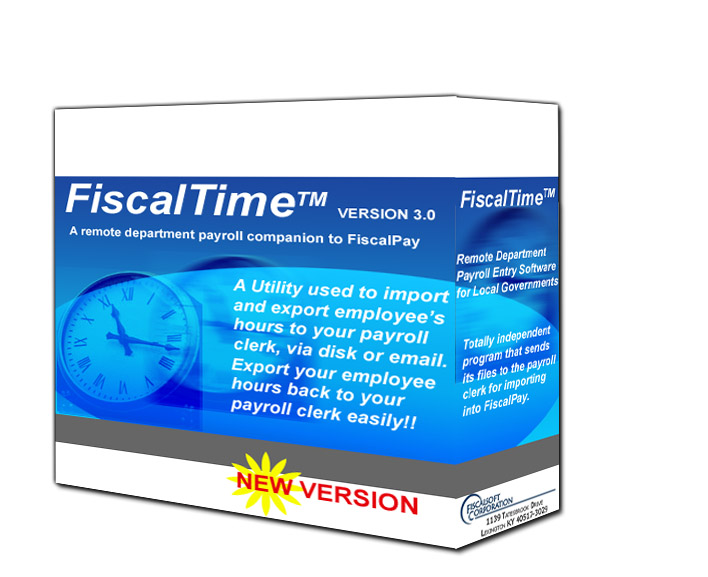
- Exported files are imported into FiscalPay™ ready for rapid calculation of payroll
|
| |
- Set the “Pay Period “ date and the payroll “Check Date” each time you export
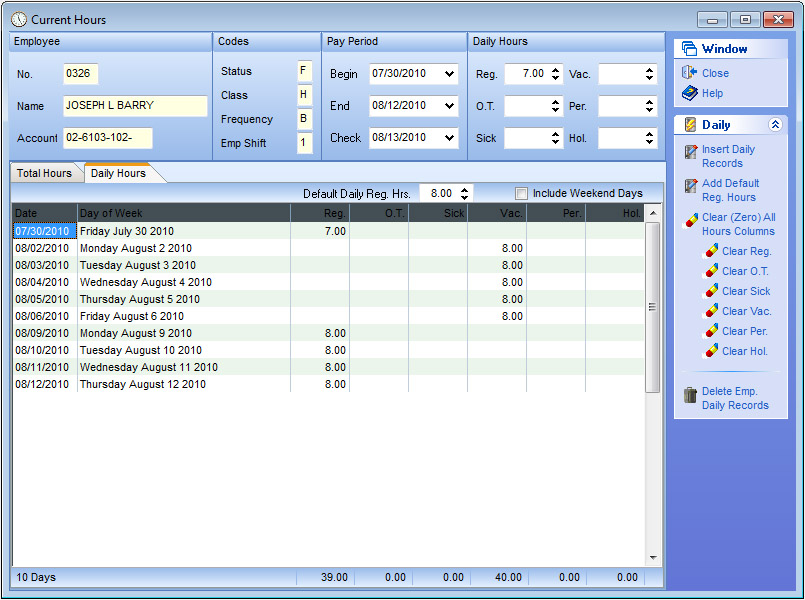
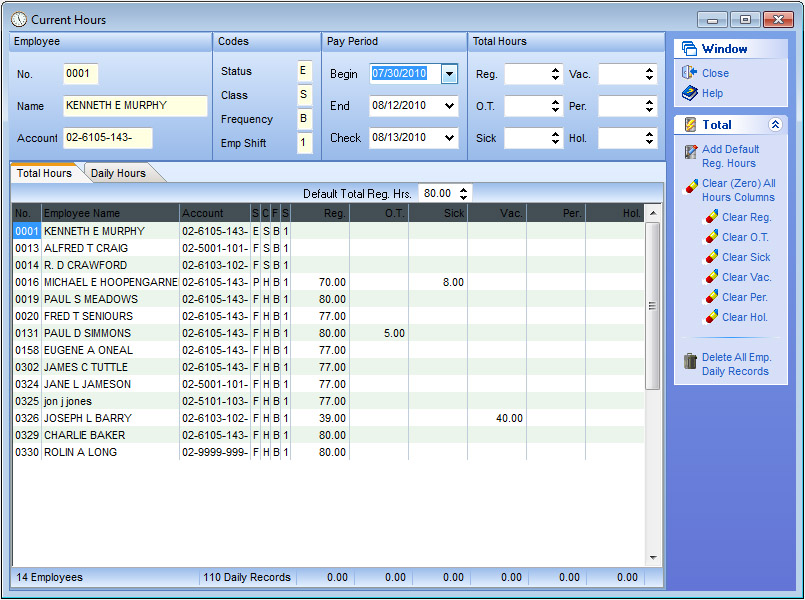
- Multiple ways to input employee hours in a grid area common to all Fiscalsoft programs
- Retains each payroll file on your hard drive in an archive formatted compressed file
- No need to re-import each pay period, if there is no change with the employees; simply click the "Clear Hours" button, set the "Pay Period", "Check Date" and start fresh
|
| |
|
| |
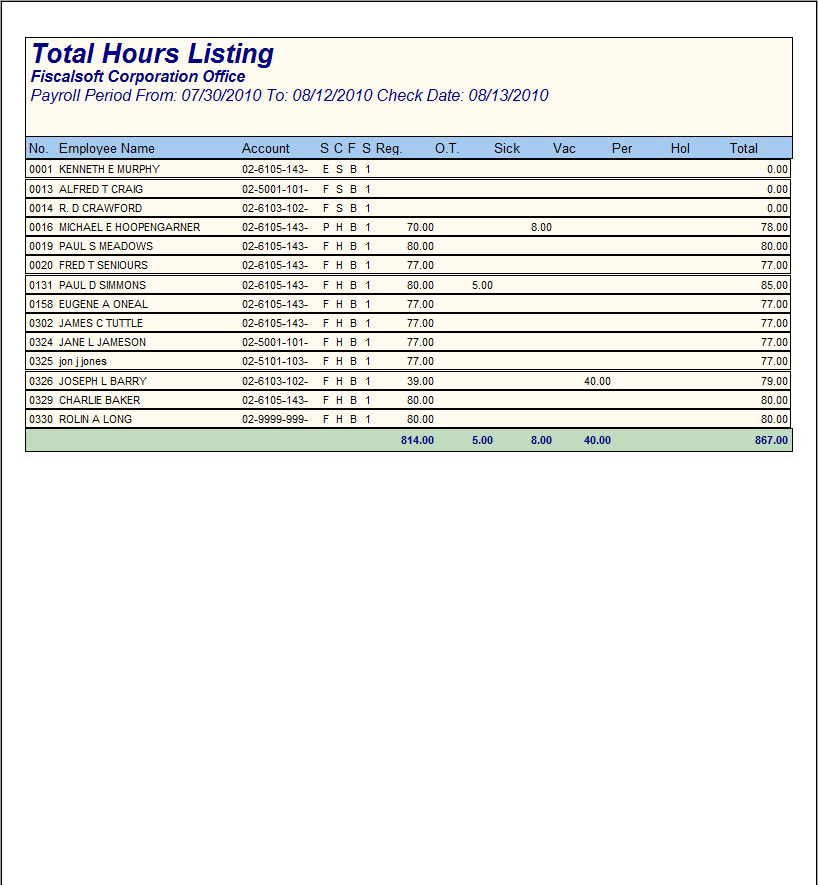
- Total Hours Listing report for use to verify employee hours
- Total Hours Summary report
- Daily Hours Listing report
- Daily Hours Summary report
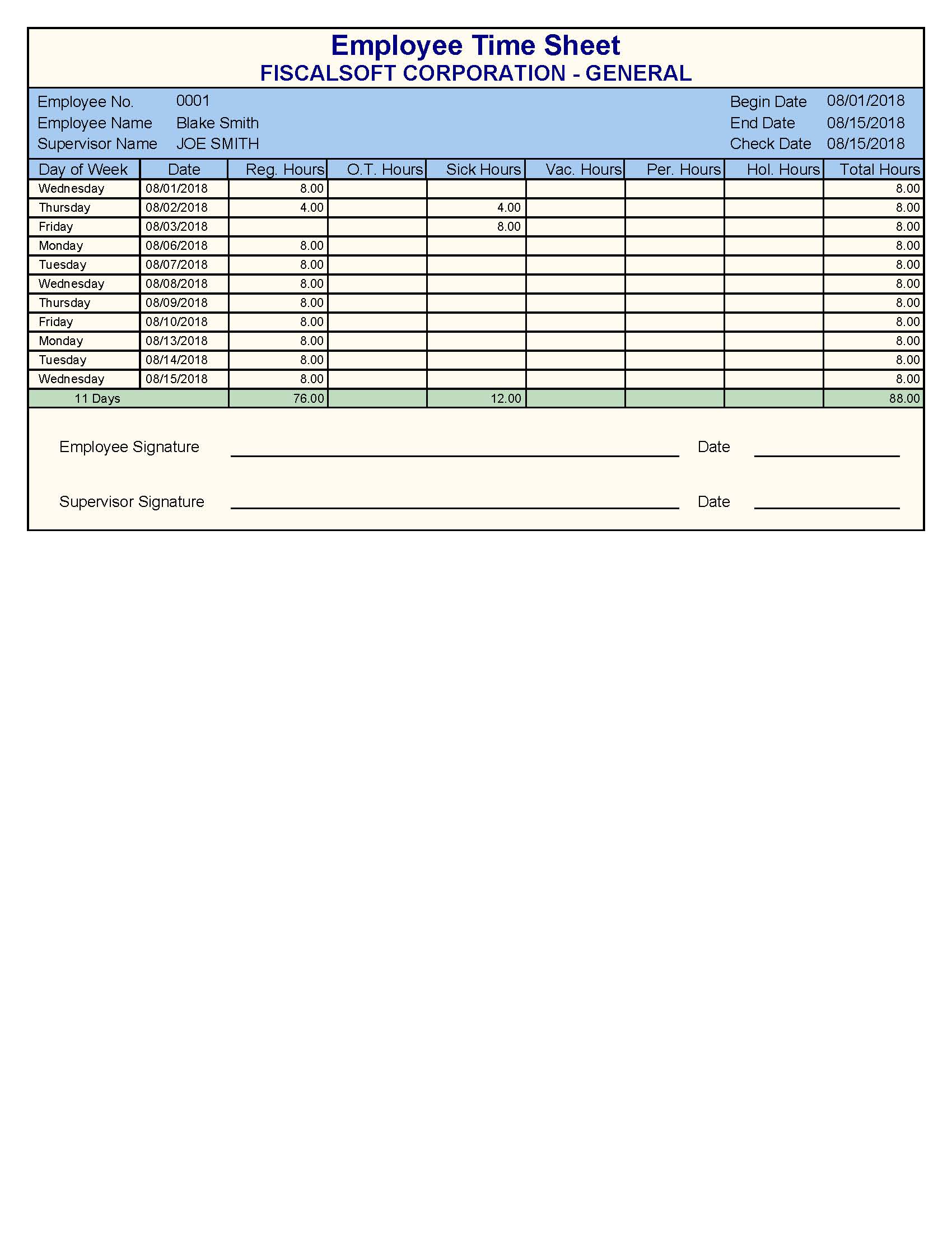
- Employee Time Sheet reports
- Attach reports to payroll clerk email with one button click
|
|
| |
- Begin a new payroll for the Remote Department (Do not calculate at this time)
- Click Export and Save files to disk (Local or a Network drive)
- Attach files to an E-mail and send to the remote department for import to FiscalTime™
- Export files to a Web Server, use your own or use Fiscalsoft's Web Server
|
| |
|
| |
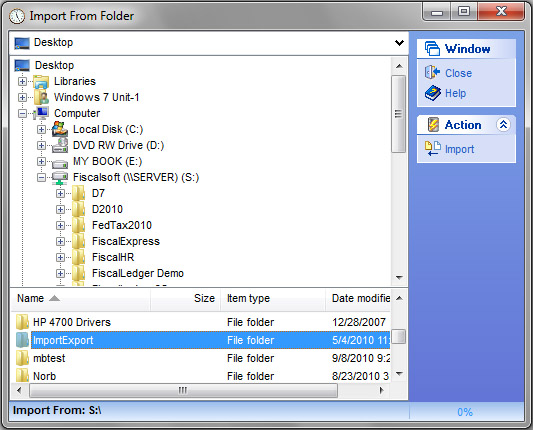
- Import Employee payroll files directly from your payroll clerk via email
- Import Employee payroll files directly from a Web Server
- Import Employee payroll files directly from your payroll clerk via floppy diskette or any hard drive attached to your computer or computer network
- FiscalTime™ allows importing of up to 9,999 employee records from the payroll clerks FiscalPay™ employee files
|
| |
|
| |
- You may save the file to any hard drive attached to your computer, be it a local or a network drive
- You may export the files to a Web Server from the Export to Web Server window
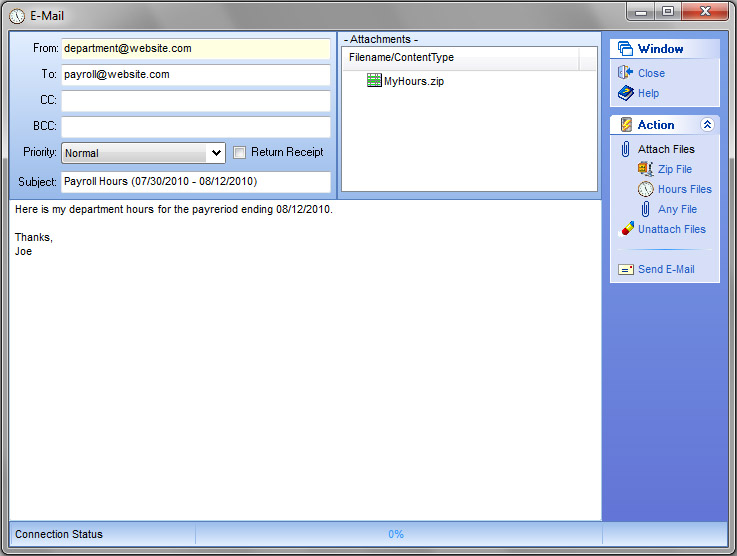
- You may email the files to your clerk via FiscalTime™'s built in email client
|
| |
|
| |
- Save files from Remote Department E-mail
- Import payroll files to the Payroll Entry Page
- Import payroll files from a Web Server
|
|
|
|
| |
- Digital Getting Started PDF Document in Help Menu
- One year free phone and email support, and program updates upon License payment and registration
- Comprehensive annual Software Support Subscription
- Email support and program updates via Internet
- Telephone support(9am - 5pm Monday – Friday EST)
- Municipal software development firm since 1983
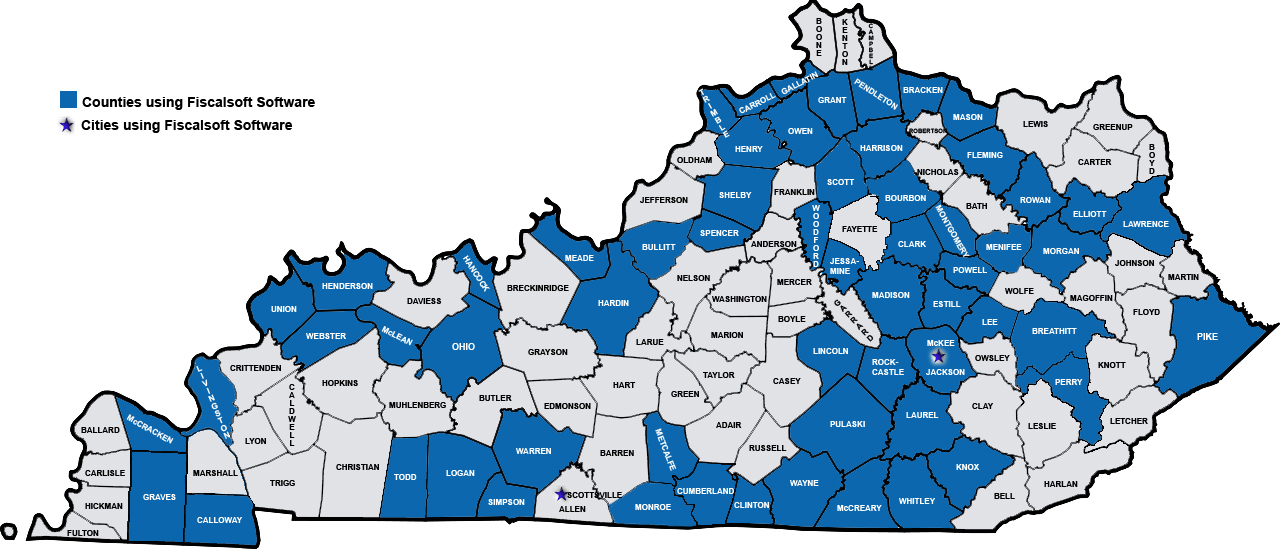
- 1st Software Provider Certified by KY Dept. for Local Government for true on-line electronic filing via Internet
|
| |
|
| |
You can contact Fiscalsoft via Email or you can fill out our contact form
Feel free to call 859-273-9741 or Email Support with any problems or questions about this product
or you can go to our Contacts page to view all email and mailing addresses and phone numbers.
Fiscalsoft Products are developed using
Delphi
|
| |
| |
| go to the TOP of the page |
|
|